
Any questions?
+34 655 641 050 >
 Alfa Romeo
 Audi
Audi
 Bentley
 BMW
BMW
 Cadillac
 Chevrolet
 Chrysler
 Citroen
 Dacia
Dacia
 Daewoo
 DAF
DAF
 Dodge
Dodge
 Ferrari
 Fiat
Fiat
 Ford
Ford
 GMC
GMC
 Honda
Honda
 Hummer
 Hyundai
 Infiniti
 Iveco
Iveco
 Jaguar
 Jeep
Jeep
 Kia
Kia
 Lada
Lada
 Lamborghini
 Lancia
 Land Rover
 MAN
MAN
 Maserati
 Maybach
 Mazda
Mazda
 Mercedes Benz
 MG
MG
 Microcar
 Mini
Mitsubishi
Mini
Mitsubishi
 Multicar
 Nissan
 Opel
Opel
 Peugeot
 Porsche
 Renault
 Rover
Rover
 SAAB
SAAB
 Seat
Seat
 Skoda
Skoda
 Smart
Smart
 SsangYong
 Subaru
 Susuki
 Toyota
 Volkswagen
 Volvo
Volvo
 Immobiliser deactivation in Murcia
 Car key copying in Murcia
 Particulate filter cleaning in Murcia
 Lost car keys in Murcia
 Hybrid and electric car battery repair in Murcia
 ECU repair in Murcia
Instrument cluster repair in Murcia
ECU repair in Murcia
Instrument cluster repair in Murcia
 Electric power steering repair in Murcia
 Car key repair in Murcia
 ABS module repair in Murcia
 CAS module repair in Murcia
 FRM module repair in Murcia
 SRS module repair in Murcia
 Renault and Dacia UCH repair in Murcia
ECU remapping in Murcia
Renault and Dacia UCH repair in Murcia
ECU remapping in Murcia
 Car key cards in Murcia
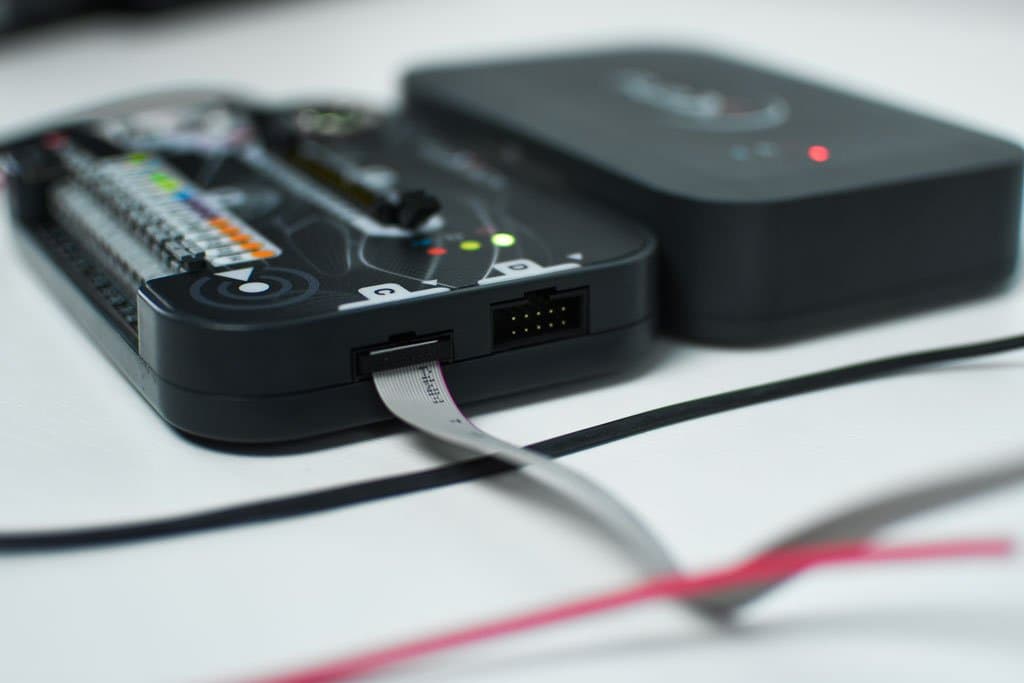
If you're thinking about getting started with ECU remapping or want to expand your workshop with a professional tool, Flex from MagicMotorsport is one of the best options.
But before connecting your first car, it's important to understand how it works and what you need to get started without mistakes.
Here's a step-by-step guide to get started with your Flex Slave safely, quickly, and professionally.
What is Flex and who is it for?
Flex is an advanced tool for programming, reading, cloning, and diagnosing ECUs and TCUs (engine and transmission control units). It's designed for:
Workshops that want to start offering remapping services.
Professionals who repair ECUs.
Specialists who work with cloning or conversions.
Users looking for a reliable way to enter the world of automotive electronics.
Flex allows you to work in OBD, Bench, and Boot modes, with a clear interface and step-by-step guides for each procedure.
Step 1 – Purchase and License Selection: Flex Slave
The Flex Slave license is the perfect option to start working professionally without needing advanced knowledge.
Why choose the Slave version?
✅ More economical than other tools of a similar level.
✅ No technical complications: you simply read the file and send it to your supplier.
✅ Safer work: you don't run the risk of modifying incorrectly configured maps.
✅ You focus on service and leave the modifications to the expert.
✅ Ideal for workshops and technicians looking for profitability from day one.
At Ecumotorstock, we provide you not only with the tool, but also with training, technical support, and ongoing assistance, so that the complex becomes easy.
Step 2 – Activating your Flex device
Once you receive your device:
Create an account on the MagicMotorsport website.
Download the Flex Manager software.
Connect your Flex to your computer via USB.
Follow the activation and account linking steps.
At this point, your device will be ready to start working.
Step 3 – Installing the Flex software on your PC
Download the Flex software from the official website.
Make sure you have an updated Windows PC.
Install the USB drivers and disable your antivirus software if necessary during installation.
Open the software and log in with your account.
From here, you can manage your jobs, perform readings, send files, and control the entire workflow.
Step 4 – First use: Connecting and reading an ECU
Choose a compatible vehicle (see the Flex Vehicle List).
Connect Flex to the car (OBD mode) or to the ECU outside the car (Bench or Boot mode).
Select the appropriate protocol and follow the instructions.
Perform a complete ECU reading.
Save the generated file and send it to your authorized service provider for modification.
Step 5 – Saving and Managing Read and Write Files
After each read operation, the software generates files containing all the ECU information. We recommend:
Saving them in folders labeled with make, model, and date.
Making regular backups.
Using a system of labels or notes to organize your work.
At Ecumotorstock, we help you structure your workflow from the start so you can be efficient from the very first customer.
Key Tips for New Users
Safety
Always use a stable power supply (13.8V – 10A).
Do not disconnect Flex during a read or write operation.
Always follow the software steps exactly as indicated.
Avoiding Common Mistakes
Don't skip checking the list of compatible vehicles beforehand.
Don't use low-quality cables or clamps.
Don't rush: precision prevents errors and lockups.
Check the Vehicle List Before Each Intervention
The official Vehicle List tells you if you can work via OBD, Bench, or Boot, and what functions are available (read, write, clone, etc.).
Checking it beforehand will save you trouble.
Conclusion
Flex is a powerful and professional tool, and with the Slave version, you can get started safely, cost-effectively, and without complications.
You don't need advanced knowledge of maps or editing software: simply connect, read, and send the file. We take care of the rest.
At Ecumotorstock, we deliver your Flex ready to use and give you access to:
Personalized training.
Real technical support.
Guidance for your first jobs.
Files tested and optimized by professionals.
Want to start with the best equipment and without fear of making mistakes?
Request more information
{"one"=>"Select 2 or 3 items to compare", "other"=>"{{ count }} of 3 items selected"}
 ECU cloning
 ECU rental
 BCM repair
 ECU sales
 Audi
Audi
 Lexus
Lexus
Leave a comment